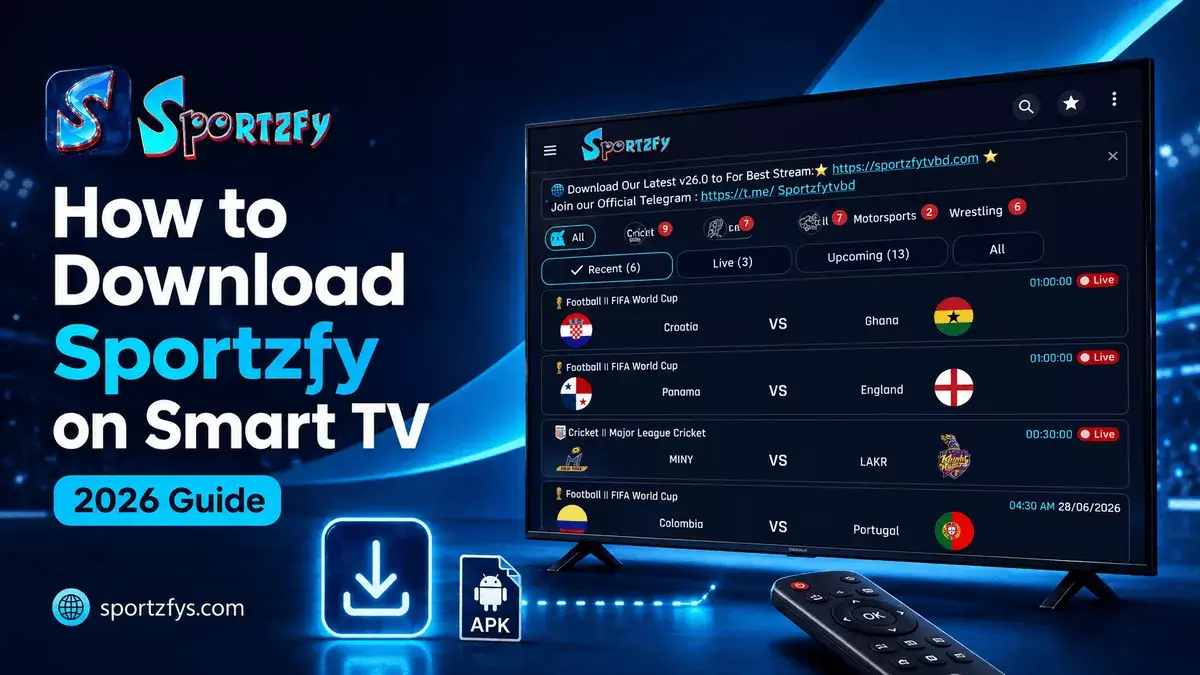
Many users want to download Sportzfy on Smart TV because watching sports on a big screen feels much better than watching on a mobile phone. Whether it is football, cricket, FIFA World Cup matches, or other sports events, a Smart TV can give users a more comfortable viewing experience.
Sportzfy can work on some Smart TVs, but it depends on the TV operating system. Android TV, Google TV, and Fire TV devices usually support APK installation, while Samsung and LG Smart TVs do not install Android APK files directly.
In this guide, we will explain which Smart TVs support Sportzfy App, how to install it on compatible TVs, and what options users have if their TV does not support APK installation.
Sportzfy Smart TV Quick Info
Can You Install Sportzfy on a Smart TV?
Yes, you can install Sportzfy on many Smart TVs, but it depends on the operating system your TV uses. Since Sportzfy is an Android APK, it works best on Smart TVs that support Android apps or APK installation.
Android TV, Google TV, and Fire TV devices usually allow APK installation, making the setup simple. However, Samsung Smart TVs with Tizen OS and LG Smart TVs with webOS do not support Android APK files directly.
If your TV does not support APK installation, you may still be able to enjoy Sportzfy by using an external Android-based device such as a FireStick, Android TV Box, Mi TV Stick, or Chromecast with Google TV.
Which Smart TVs Support Sportzfy?
Not every Smart TV can install Android APK files. Before downloading Sportzfy, it is important to know whether your TV supports Android apps.
If your TV runs Android TV or Google TV, you can usually install the Sportzfy APK without much difficulty. If you have a Samsung or LG Smart TV, you cannot install the APK directly because these TVs use different operating systems.
In that case, using a FireStick, Android TV Box, Mi TV Stick, or Google TV streaming device is the easiest way to enjoy Sportzfy on your television.
Method 1: Install Sportzfy on Android TV
If your Smart TV runs on Android TV, you can install Sportzfy using the APK file. This is the easiest method for most supported Smart TVs.
Steps to Install
- Open your Android TV and connect it to WiFi.
- Install the Downloader app or use a trusted file manager.
- Enable Unknown Sources for the Downloader or file manager app.
- Download the latest Sportzfy APK.
- Open the APK file.
- Select Install.
- Wait for the installation to finish.
- Open Sportzfy from your apps section.
For a full step-by-step setup, you can also read our complete Sportzfy on Android TV guide.
Method 2: Install Sportzfy on Google TV
Google TV also supports Android apps, so Sportzfy can be installed in a similar way to Android TV. This method works on devices like Chromecast with Google TV and many newer Smart TVs that use Google TV.
Steps to Install
- Connect your Google TV to the internet.
- Install the Downloader app or use a file manager.
- Allow APK installation from that app.
- Download the latest Sportzfy APK.
- Open the downloaded APK file.
- Select Install.
- After installation, open Sportzfy from your apps list.
Google TV users should always use the latest Sportzfy version for better performance, especially during football, cricket, and other sports events.
Method 3: Use FireStick or Fire TV for Sportzfy
If your Smart TV does not support APK installation directly, FireStick is one of the easiest options. It works with most TVs that have an HDMI port and allows users to install Android-based APK files through the Downloader app.
Steps to Install With FireStick
- Connect FireStick to your TV.
- Install the Downloader app.
- Enable Install Unknown Apps for Downloader.
- Enter the Sportzfy Downloader code if available.
- Download the latest Sportzfy APK.
- Install the APK.
- Open Sportzfy from your FireStick apps section.
This method is helpful for Samsung and LG Smart TV users because those TVs cannot install Android APK files directly. You can also read our full Sportzfy on FireStick guide for detailed steps.
Can Samsung Smart TV Install Sportzfy?
Samsung Smart TVs usually cannot install Sportzfy directly because most Samsung TVs run on Tizen OS, not Android TV. Since Sportzfy is an Android APK, it does not install directly on Samsung Smart TVs.
But Samsung users still have options. The easiest way is to connect an external Android-based device to the TV.
Best Options for Samsung TV Users
- Use FireStick
- Use Android TV Box
- Use Chromecast with Google TV
- Use Mi TV Stick
- Use PC or laptop with HDMI
This way, you can still use Sportzfy on a Samsung TV screen even if the TV itself does not support APK installation.
Can LG Smart TV Install Sportzfy?
LG Smart TVs also cannot install Sportzfy directly because most LG TVs use webOS, not Android TV. Since Sportzfy is an Android APK, it does not work as a direct install on LG Smart TVs.
LG users can still use Sportzfy on the TV screen by connecting an external device that supports APK installation.
Best Options for LG TV Users
- Use FireStick
- Use Android TV Box
- Use Chromecast with Google TV
- Use Mi TV Stick
- Use PC or laptop with HDMI
This is the simplest way to enjoy Sportzfy on an LG TV without trying unsupported APK installation methods.
Best Settings for Watching Sportzfy on Smart TV
After installing Sportzfy, a few simple settings can help improve your viewing experience. These are especially useful during football tournaments like FIFA World Cup 2026, when many users watch matches at the same time.
Recommended Settings
- Connect your Smart TV to a stable WiFi network.
- Keep the latest Sportzfy version installed.
- Select a 4K channel if your TV and internet support it.
- Close unused apps running in the background.
- Restart the app if a channel is slow to load.
- Update your TV software regularly for better compatibility.
- Open Sportzfy 10–15 minutes before big matches.
These small steps can help provide smoother playback, quicker event loading, and a better overall experience while watching football, cricket, and other sports on your Smart TV.
If you are using the latest update, you can also read our Sportzfy v27.0 update guide to learn about 4K support, new FIFA channels, and performance improvements.
Common Problems While Installing Sportzfy on Smart TV
Some users may face installation or playback issues depending on their Smart TV model and operating system. Most of these problems are easy to fix with a few simple checks.
APK File Not Installing
- Check whether your TV supports Android APK files.
- Enable Unknown Sources if available.
- Download the APK again from a trusted source.
- Use FireStick or Android TV Box if your TV does not support APK files.
Downloader App Not Working
- Restart the TV or FireStick.
- Check your internet connection.
- Clear Downloader app cache if available.
- Try a file manager method instead.
App Not Opening After Installation
- Restart Sportzfy.
- Restart your TV device.
- Clear Sportzfy cache if available.
- Install the latest APK version.
Black Screen or Buffering
- Use stable WiFi.
- Try another event link or channel.
- Close background apps.
- Use HD quality if 4K buffers.
If Sportzfy does not install, first make sure your TV supports Android APK files. If you are using a Samsung or LG Smart TV, remember that these TVs do not support APK installation directly. In that case, using a FireStick, Android TV Box, or Google TV device is the recommended solution.
If the app installs but runs slowly, restart your TV, clear the app cache if available, update to the latest Sportzfy version, and use a stable WiFi connection for the best performance.
For complete troubleshooting, read our Sportzfy Not Working guide and Sportzfy Buffering Fix guide.
Sportzfy on Smart TV During FIFA World Cup 2026
Many football fans prefer watching FIFA World Cup matches on a bigger screen. A Smart TV setup can make the experience more comfortable, especially during knockout matches, semifinals, and the final.
Sportzfy v27.0 has added 4K player support and improved FIFA channel options for selected major matches. If your TV, internet, and available channel support 4K, you may get a sharper viewing experience on a larger screen.
Open Sportzfy before kickoff, keep your TV connected to stable WiFi, and use another available channel option if one link becomes slow during a big match.
You can also read our guide on how Sportzfy helps football fans during FIFA World Cup 2026.
Safety Tips Before Downloading Sportzfy on Smart TV
Because Sportzfy is installed as an APK, users should always be careful before downloading the file. Fake APK pages may use the Sportzfy name, similar design, or fake version numbers to confuse users.
Before You Install
- Download Sportzfy only from a trusted source.
- Check the APK version before installing.
- Check the APK size, usually around 15–16 MB.
- Avoid modified or “premium unlocked” APK files.
- Do not trust pages with too many fake download buttons.
- Use a compatible Android-based device for Samsung or LG TVs.
You can also read our fake Sportzfy versions guide to learn how to identify copied websites and unsafe APK files.
FAQs About Downloading Sportzfy on Smart TV
Can I download Sportzfy on any Smart TV?
No. Sportzfy works best on Smart TVs that support Android APK installation, such as Android TV, Google TV, and Fire TV devices.
Can I install Sportzfy on Samsung Smart TV?
Not directly. Samsung Smart TVs usually use Tizen OS, which does not support Android APK files. You can use FireStick, Android TV Box, Mi TV Stick, or Chromecast with Google TV instead.
Can I install Sportzfy on LG Smart TV?
Not directly. LG Smart TVs usually use webOS, so they cannot install Android APK files. An external Android-based device is the easiest option.
Which Smart TV is best for Sportzfy?
Android TV and Google TV devices are usually the best options because they support APK installation more easily.
Why is Sportzfy not installing on my Smart TV?
Your TV may not support APK files, Unknown Sources may be disabled, or the APK file may be outdated. Check your TV operating system first before installing.
Can Sportzfy play 4K channels on Smart TV?
Sportzfy v27.0 supports 4K playback in the built-in player. However, 4K availability depends on the match channel, your TV support, and internet speed.
Final Words
Downloading Sportzfy on Smart TV depends on your TV operating system. Android TV, Google TV, and Fire TV devices usually support APK installation, while Samsung and LG Smart TVs need an external device like FireStick, Android TV Box, Mi TV Stick, or Chromecast with Google TV.
For the best experience, use the latest Sportzfy version, stable WiFi, and a compatible device. This will help you enjoy football, cricket, and other sports on a bigger screen with fewer issues.
If your Smart TV does not support APK files directly, do not force unsupported installation methods. Use a compatible Android-based streaming device and always download Sportzfy from a trusted source.