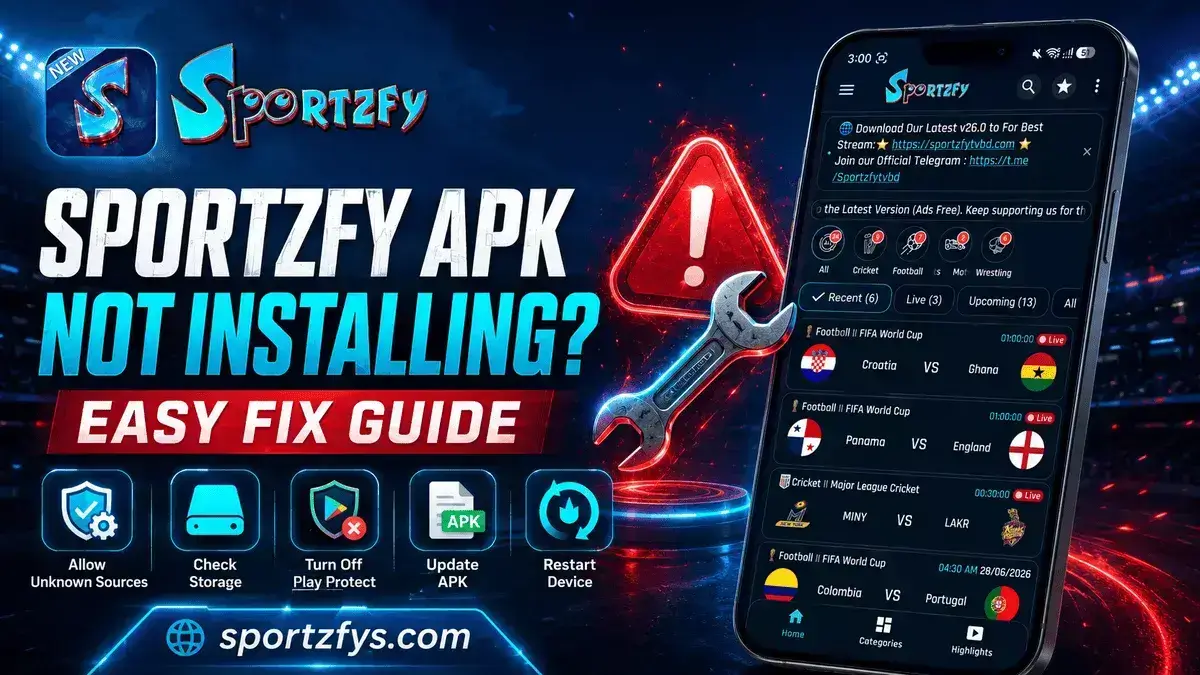
Sometimes users download the Sportzfy APK, but the app does not install properly. This can happen because of Android settings, Play Protect warnings, low storage, an old APK file, or a corrupted download.
The good thing is that most installation problems are easy to fix. You usually do not need to reset your phone or change complicated settings. A few simple checks can solve the issue.
In this guide, we will explain why Sportzfy APK may not install and how to fix common errors like App Not Installed, Play Protect warning, storage issue, and APK installation blocked.
Sportzfy APK Not Installing Quick Checks
Why Sportzfy APK May Not Install
Sportzfy APK may fail to install for several reasons. In most cases, the issue is not with the phone itself. It usually happens because Android blocks unknown apps, the APK file is incomplete, or the device does not meet the basic requirements.
Common Reasons Include
- Install Unknown Apps permission is disabled
- Google Play Protect warning appears
- APK file was not downloaded completely
- Not enough storage on the device
- Old Sportzfy version is causing conflict
- Android version is too old
- APK file is fake or modified
- File manager or browser does not have install permission
Once you find the reason, the fix becomes much easier. Start with the basic steps below before deleting everything from your phone.
1. Enable Install Unknown Apps Permission
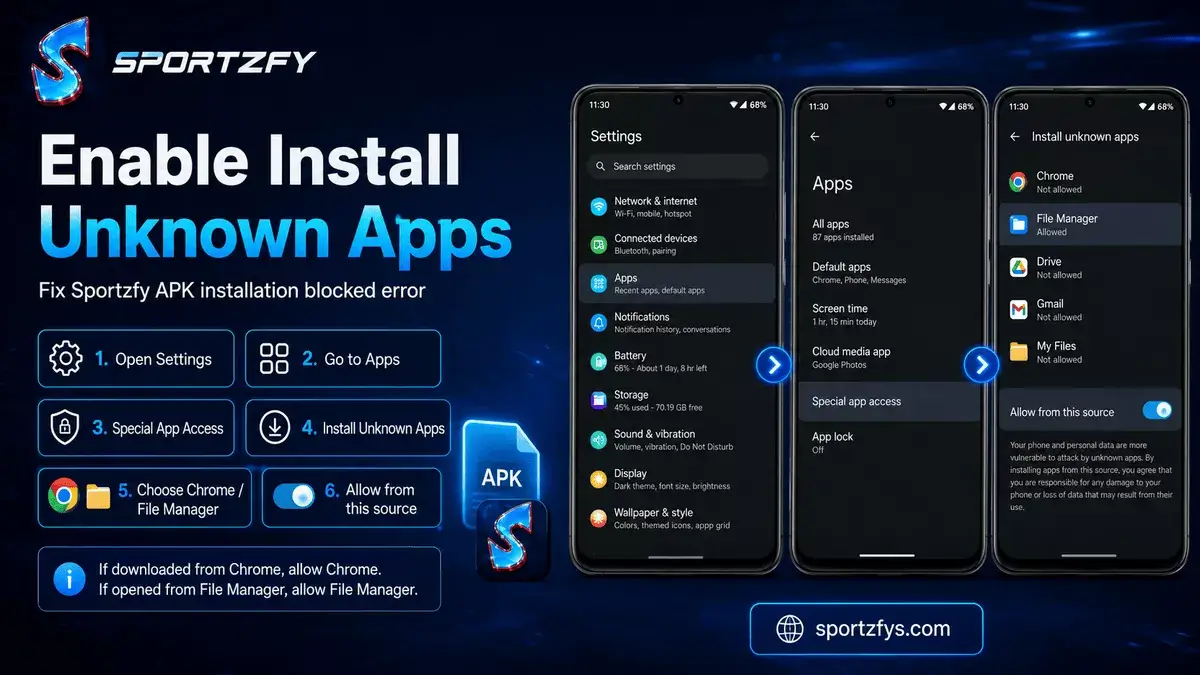
Sportzfy is an APK file, so Android may block the installation if unknown app permission is not enabled. This is one of the most common reasons behind the App Not Installed or installation blocked error.
How to Enable It
- Open Settings on your Android phone.
- Go to Apps.
- Tap Special App Access.
- Select Install Unknown Apps.
- Choose the browser or file manager you used to download Sportzfy.
- Turn on Allow from this source.
- Try installing the Sportzfy APK again.
If you downloaded the APK from Chrome, allow Chrome. If you opened it from File Manager, allow File Manager. This small setting fixes many APK installation issues.
2. Check Google Play Protect Warning
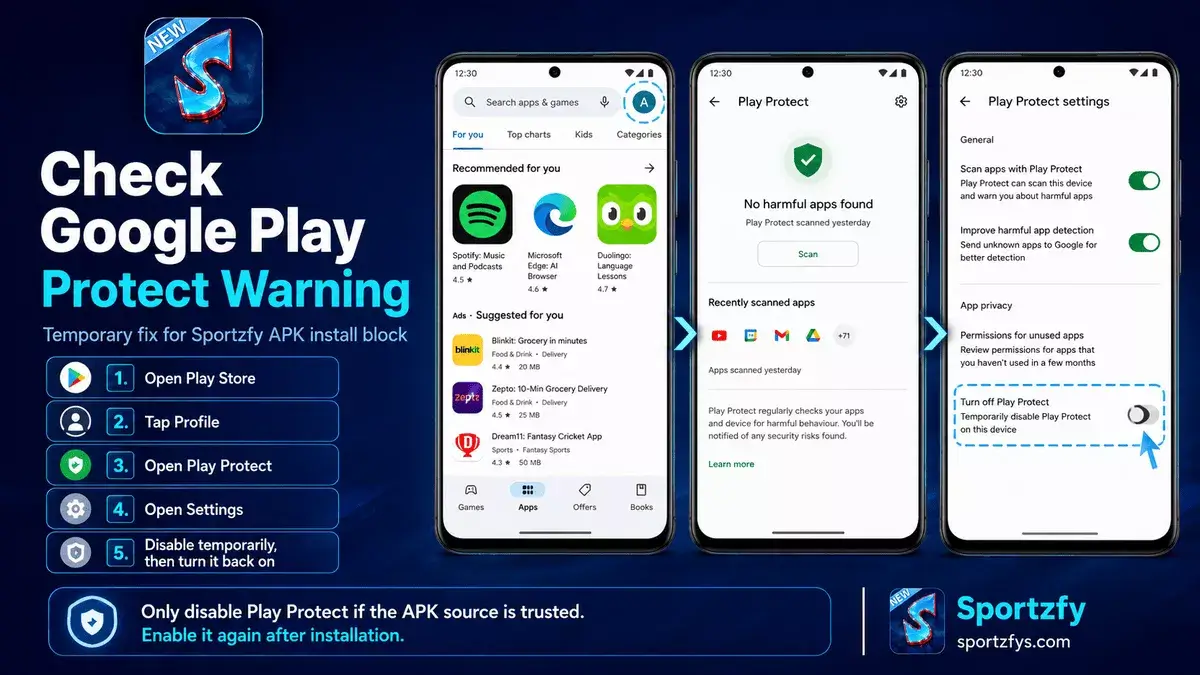
Sometimes Google Play Protect may show a warning while installing Sportzfy because the app is installed from outside the Play Store. This can happen with many third-party APK files.
Before doing anything, first make sure you downloaded the APK from a trusted Sportzfy source. Do not turn off Play Protect for random APK files.
If you trust the source and Play Protect still blocks installation, you can temporarily turn off Play Protect, install the APK, and then turn Play Protect back on again.
Basic Play Protect Check
- Open the Google Play Store.
- Tap your profile icon.
- Go to Play Protect.
- Open Play Protect settings.
- If you temporarily disable it, install Sportzfy and then enable it again.
3. Download the APK Again
Sometimes the Sportzfy APK does not install because the download was interrupted or the file became corrupted. Even if the APK looks complete, an incomplete download can trigger errors like App Not Installed or prevent the installation from starting.
What You Should Do
- Delete the APK file that is not installing.
- Download the latest Sportzfy APK again.
- Make sure the download finishes completely before opening the file.
- Check that you are downloading the latest version.
- Avoid using modified or unofficial APK files.
If the APK still does not install after downloading it again, move on to the next troubleshooting steps below.
4. Free Up Storage Space
Sportzfy APK may not install if your device does not have enough free storage. Even if the APK file is small, Android still needs extra space to unpack and install the app properly.
What You Can Try
- Delete old APK files.
- Remove unused apps.
- Clear cache from heavy apps.
- Delete unnecessary videos or downloads.
- Restart your phone after freeing space.
After freeing storage, try installing Sportzfy again. For best results, keep some extra free space available before installing any APK file.
5. Check Android Version
Sportzfy may not install if your Android version is too old or not compatible with the latest APK. New app updates usually need a minimum Android version to work properly.
For Sportzfy, Android 5.0 or above is recommended. If your device is running an older Android version, the APK may fail to install or may not open after installation.
How to Check Android Version
- Open Settings.
- Go to About Phone.
- Find Android Version.
- Check if your device is running Android 5.0 or above.
If your phone is too old, try using Sportzfy on another device such as Android TV, FireStick, Chromebook, Mac, or PC emulator.
6. Remove the Old Sportzfy Version
If you already have an older version of Sportzfy installed, Android may not allow the new APK to install. This usually happens when the app signatures are different or the previous installation is damaged.
How to Fix It
- Open Settings on your phone.
- Go to Apps.
- Find Sportzfy.
- Tap Uninstall.
- Restart your device.
- Download the latest Sportzfy APK.
- Install the new version again.
If you want to keep your existing version, try updating it with an APK from the same trusted source. If the update still fails, a clean installation is usually the best solution.
7. Avoid Fake or Modified Sportzfy APK Files
Another common reason why Sportzfy fails to install is downloading a fake or modified APK. During major updates like Sportzfy v27.0 or big events such as the FIFA World Cup, many websites publish APK files that are outdated, modified, or filled with unnecessary ads.
These APKs May Show Errors Like
How to Stay Safe
- Download the latest Sportzfy APK from a trusted source.
- Check that the version number matches the latest release.
- Verify the APK size if your website provides it.
- Avoid websites with multiple fake download buttons or excessive redirects.
- Never install APK files from unknown sources just because they claim to be a newer version.
Using the correct APK not only improves the installation process but also helps you avoid unnecessary errors and security risks.
You can also read our fake Sportzfy versions guide to learn how copied APK pages mislead users.
8. Fix “App Not Installed” Error
The App Not Installed error is common when installing APK files manually. It can happen because of permission issues, old app conflicts, corrupted APK files, low storage, or unsupported Android versions.
Quick Fix Checklist
- Enable Install Unknown Apps permission.
- Delete the old APK and download it again.
- Free up storage space.
- Uninstall the old Sportzfy version first.
- Restart your phone before installing again.
- Check that your Android version is supported.
- Avoid fake or modified APK files.
If the error still appears after trying everything, install Sportzfy on another supported device to check whether the issue is with the APK file or your phone.
9. Installing Sportzfy on Android TV or FireStick
If Sportzfy APK is not installing on your phone, you can also try installing it on another supported device like Android TV or FireStick. Sometimes the problem is device-specific, not the APK itself.
Sportzfy Can Be Installed On
Good for big-screen APK installation and sports viewing.
Read Android TV GuideWorks through APK installation on supported Google TV devices.
Read Smart TV GuideUseful for TV users who install APKs through Downloader.
Read FireStick GuideWorks through Android emulators like BlueStacks or LDPlayer.
Read PC GuideIf you are using a bigger screen, follow the proper setup method for your device. This helps avoid APK installation errors and unsupported device problems.
10. What If Sportzfy Installs But Does Not Open?
Sometimes the APK installs successfully, but the app does not open, crashes, or shows a black screen. This usually happens because of cache issues, old devices, unsupported versions, or fake APK files.
Try These Fixes
- Restart your phone.
- Clear Sportzfy app cache.
- Check your internet connection.
- Install the latest Sportzfy version.
- Remove fake or modified APK files.
- Try another supported device if your phone is too old.
For more help, read our full Sportzfy Not Working guide.
Sportzfy APK Installation Problem Table
Here is a quick table to help you understand the problem and the best fix.
FAQs About Sportzfy APK Installation
Why is Sportzfy APK not installing?
Sportzfy APK may not install because unknown sources are disabled, the APK file is corrupted, storage is low, Play Protect is blocking it, Android version is old, or an old Sportzfy version is causing conflict.
How do I fix the App Not Installed error?
Enable unknown app permission, delete the old APK, download the latest version again, free up storage, restart your device, and try installing again.
Should I turn off Play Protect to install Sportzfy?
Only if you trust the APK source. If Play Protect blocks installation, you may temporarily turn it off, install the APK, and then turn Play Protect back on again.
Can an old Sportzfy version stop the new one from installing?
Yes. If the old version has a different signature or corrupted files, Android may block the new installation. Uninstall the old version and install the latest APK again.
What Android version is required for Sportzfy?
Android 5.0 or above is recommended for Sportzfy. Very old Android devices may not support the latest APK.
Can a fake Sportzfy APK cause installation errors?
Yes. Fake or modified APK files can show App Not Installed, package invalid, Play Protect warnings, crashes, or broken app behavior after installation.
Final Words
Sportzfy APK installation problems are usually easy to fix. Most errors happen because of Android permissions, Play Protect warnings, low storage, old versions, corrupted APK files, or fake downloads.
Before trying complicated fixes, start with the basics: enable unknown app permission, download the APK again, free up storage, and restart your device. Also, avoid fake or modified Sportzfy APK files because they can cause installation errors and app problems later.
If Sportzfy still does not install on your phone, try installing it on another supported device such as Android TV, FireStick, Smart TV with Android support, or PC emulator.