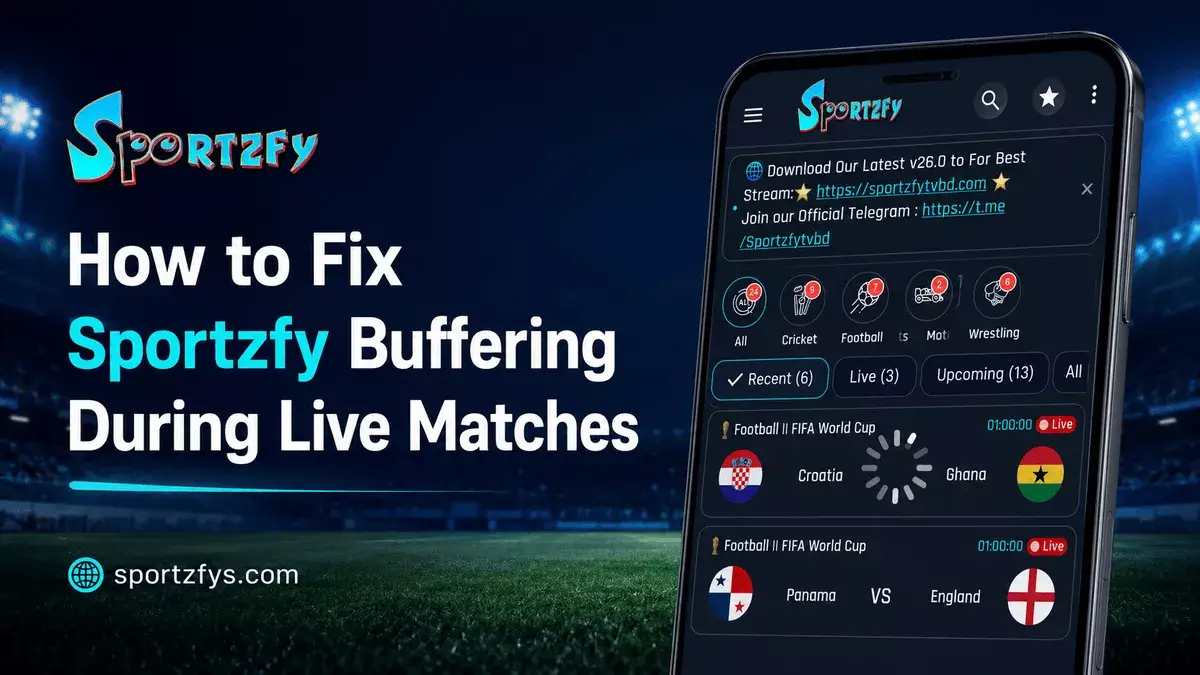
Buffering during a live match is one of the most annoying problems for any sports fan. You open Sportzfy to watch football, cricket, or another live event, and suddenly the stream starts loading again and again.
This usually happens because of weak internet, high traffic during big matches, app cache issues, old versions, or a slow event link. The good thing is that most buffering issues can be fixed with simple steps.
In this guide, we will explain the best ways to fix Sportzfy buffering during live matches and improve your viewing experience on Android, Android TV, FireStick, and PC.
Sportzfy Buffering Quick Fixes
Why Does Sportzfy Keep Buffering?
Sportzfy can buffer for different reasons. Sometimes the issue is not with the app itself, but with the internet connection, device performance, or one busy event link.
During big matches like FIFA World Cup games or major cricket events, many users may open the same stream at the same time. This can make one link slower than usual.
Common Reasons
- Weak WiFi or mobile data
- Too many users on one live event
- Old Sportzfy version
- App cache problem
- Slow device performance
- Background apps using internet
- Fake or modified APK file
- Server load during popular matches
1. Check Your Internet Connection First
The first thing to check is your internet connection. Live sports streams need a stable connection, and even small drops can cause buffering during football or cricket matches.
Try These Quick Checks
- Switch from WiFi to mobile data.
- Switch from mobile data to WiFi.
- Restart your router.
- Move closer to your WiFi router.
- Stop other downloads on the same network.
- Test another app or website.
2. Restart the Sportzfy App
Sometimes buffering starts because the app is stuck in the background or the event page did not load properly. A quick restart can refresh the app and fix small loading issues.
Restart Sportzfy Properly
- Close Sportzfy completely.
- Remove it from recent apps.
- Wait a few seconds.
- Open Sportzfy again.
- Try the same live event once more.
This simple fix helps when the stream keeps loading, the event page feels slow, or Sportzfy is not responding properly.
3. Clear Sportzfy App Cache
App cache can sometimes make Sportzfy slow or cause buffering during live matches. Clearing cache removes temporary files and gives the app a fresh start.
How to Clear Cache on Android
- Open Settings on your device.
- Go to Apps or App Management.
- Find and tap Sportzfy.
- Tap Storage.
- Select Clear Cache.
- Open Sportzfy again and try the live match.
4. Update Sportzfy to the Latest Version
Old app versions can sometimes cause buffering because they may not include the latest performance improvements, bug fixes, or event loading updates.
If Sportzfy keeps buffering, check whether a newer version is available. Recent updates like Sportzfy v26.0 focused on faster performance, smoother event navigation, and better stability during live sports events.
For Best Results
- Use the latest Sportzfy version.
- Avoid fake or modified APK files.
- Check update details before installing.
- Download from a trusted Sportzfy source.
You can also check the Sportzfy v26 update or Sportzfy Update History to see what changed in recent versions.
5. Try Another Event Link or Channel
Sometimes buffering happens only on one live event link. Sportzfy may be working fine, but the selected stream can become slow when too many users open it at the same time.
If one link keeps buffering, go back to the event list and try another available option.
What You Can Try
- Open another live event link.
- Try a different sports channel.
- Refresh the event list.
- Check the Live or Upcoming section again.
- Avoid tapping the same buffering link again and again.
This is one of the fastest fixes during busy football, cricket, or FIFA World Cup matches.
6. Open Sportzfy Before Kickoff
Many users open Sportzfy exactly when the match starts. During big live matches, this can create extra loading pressure because many people are opening the same event at the same time.
A better habit is to open Sportzfy 10–15 minutes before kickoff. This gives you time to find the right event, test the stream, and switch to another link if one option is slow.
This is especially helpful during FIFA World Cup matches, cricket finals, and other high-traffic live events. You can also read our Sportzfy Not Working During FIFA World Cup guide for match-time fixes.
7. Restart Your Device
If Sportzfy still buffers, restart the device you are using. This helps clear temporary memory issues and background problems that can slow down live streaming.
Restarting Can Help On
- Android phones
- Android tablets
- Android TV
- FireStick
- PC emulators like BlueStacks or LDPlayer
After restarting, open Sportzfy again and try the live event. This simple step often improves app speed and stream loading.
8. Close Background Apps
Running too many apps at the same time can slow down your device and affect live streaming performance. Background apps use RAM and internet bandwidth, which may cause Sportzfy to buffer during matches.
Before opening Sportzfy, close apps that you are not using, especially those downloading files, streaming videos, or syncing data in the background.
Apps to Close
- Video streaming apps
- Social media apps
- Large file downloads
- Cloud backup or sync apps
- Unused browser tabs
Closing unnecessary apps gives Sportzfy more system resources and can help reduce buffering during football, cricket, and other live sports events.
9. Reduce Network Usage While Watching
Sportzfy may buffer if other devices or apps are using too much internet at the same time. This is common when someone is downloading files, watching videos, or using the same WiFi for heavy tasks.
What to Avoid During Live Matches
- Downloading large files
- Streaming videos on another device
- Using weak mobile hotspot
- Running VPN if it slows speed
- Cloud backup or app updates in the background
For smoother live matches, keep your internet focused on Sportzfy as much as possible. This can make a big difference during high-traffic football and cricket events.
10. Check If Sportzfy Servers Are Busy
During big live matches, buffering may happen because too many users are opening the same event at the same time. This is common during FIFA World Cup matches, cricket finals, and other popular sports events.
If the server or event link is busy, reinstalling the app may not help. In that case, wait a few minutes and try another available link.
What You Can Do
- Wait 2–3 minutes and try again.
- Open another event link.
- Restart the app once.
- Avoid tapping the same link again and again.
- Open Sportzfy earlier before the next match.
Sometimes the issue is temporary, and trying another stream is the easiest solution.
Buffering on Android TV, FireStick, or PC
Sportzfy buffering can also depend on the device you are using. Android TV, FireStick, and PC emulators may need a little extra care because they run apps differently from a normal Android phone.
Android TV
- Restart your TV before big matches.
- Clear Sportzfy cache if the app feels slow.
- Keep your TV close to the WiFi router.
- Use the latest Sportzfy version.
Need setup help? Read our Sportzfy Android TV guide.
FireStick
- Clear cache from FireStick settings.
- Restart FireStick before live matches.
- Make sure the Downloader-installed APK is updated.
- Keep enough free storage.
Need setup help? Read our Sportzfy FireStick guide.
PC or Laptop
- Close heavy programs before opening the emulator.
- Use BlueStacks or LDPlayer with updated settings.
- Use full-screen mode for better viewing.
- Check your internet connection inside the emulator.
Need setup help? Read our Sportzfy PC or Laptop guide.
If buffering happens only on one device, the issue may be related to that device’s settings, storage, or internet connection.
Check If You Installed a Fake or Modified APK
Fake or modified Sportzfy APK files can also cause buffering, crashes, too many ads, or broken event loading. Some fake pages use the Sportzfy name but provide changed files that do not work like the latest version.
The genuine Sportzfy APK is usually around 15–16 MB, depending on the version. If your APK file size looks very different, or the app shows too many ads, verify the source before using it again.
FAQs About Sportzfy Buffering
Why does Sportzfy keep buffering?
Sportzfy may buffer because of weak internet, busy event links, old app versions, app cache issues, fake APK files, or high traffic during live matches.
How do I stop Sportzfy buffering during live matches?
Check your internet, restart the app, clear cache, update Sportzfy, close background apps, and try another event link or channel.
Does clearing cache fix Sportzfy buffering?
Yes, clearing cache can help if temporary app files are causing slow loading, black screen, or stream issues.
Why does Sportzfy buffer during FIFA matches?
FIFA matches bring high traffic, so some event links may become busy. Opening the app before kickoff and trying another link can help.
Should I reinstall Sportzfy if it buffers?
Reinstall only if other fixes do not work. First try internet checks, cache clearing, updating, restarting the app, and opening another event link.
Can a fake APK cause buffering?
Yes. Fake or modified APK files can cause buffering, crashes, broken event links, too many ads, or unstable performance.
Final Words
Sportzfy buffering during live matches is usually caused by internet issues, busy links, app cache, old versions, fake APK files, or high traffic during big events.
Before reinstalling, try simple fixes like checking your internet, restarting the app, clearing cache, updating Sportzfy, and opening the app before kickoff. These small steps can help improve your live match experience.
If buffering continues, try another event link, restart your device, and make sure you are using the latest trusted Sportzfy APK. A clean setup and stable connection can make a big difference during football, cricket, and other live sports events.